
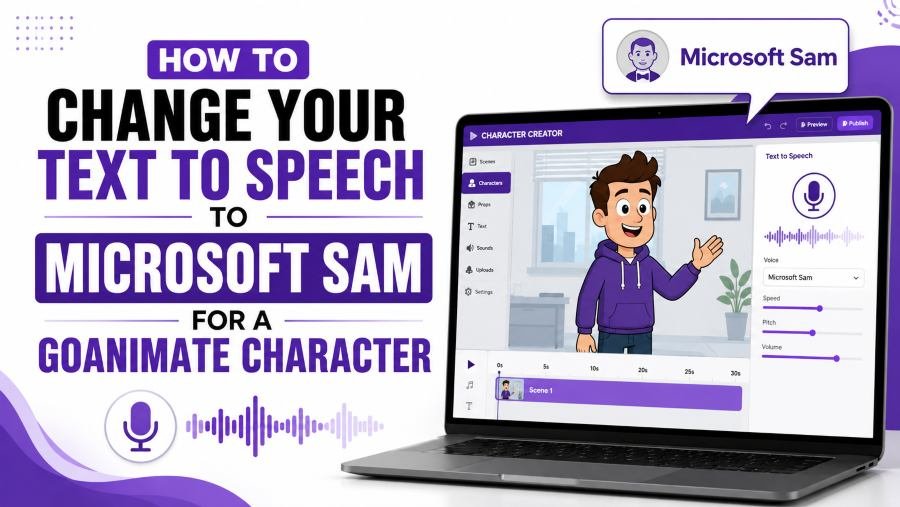
How to Change Your Text to Speech to Microsoft Sam for a GoAnimate Character
Microsoft's archived documentation identifies Sam as the older Windows 2000 and Windows XP voice. Windows Vista introduced Anna, while later Windows versions moved to voices such as David and Zira.
how to change your text to speech to microsoft sam
If you want to know how to change your text to speech to Microsoft Sam for a GoAnimate character, don't start by trying to install Microsoft Sam on Windows 11. Start with the audio result you need: a flat, robotic, repeatable character voice that you can generate line by line and import into your animation.
Microsoft Sam belonged to the Windows 2000 and Windows XP generation. Microsoft later replaced Sam with newer voices, and Microsoft's current Windows voice documentation does not list Sam as a normal Windows 10 or Windows 11 voice.
For a GoAnimate-style character in 2026, rebuilding the voice workflow is usually more useful than rebuilding the old operating system.
Can You Change Text to Speech to Microsoft Sam on a Modern PC?
You normally cannot select Microsoft Sam as a standard built-in voice on Windows 10 or Windows 11. If your goal is a GoAnimate character, use a Sam-style character voice workflow instead of forcing obsolete TTS software into a modern Windows installation.
Microsoft's archived documentation identifies Sam as the older Windows 2000 and Windows XP voice. Windows Vista introduced Anna, while later Windows versions moved to voices such as David and Zira.
Microsoft still lets you add supported voices through Narrator and Windows Speech settings, but that does not mean Sam returns as an available modern voice. Microsoft's current documentation describes adding legacy and natural voices from the supported voice library.
The key point is: if Sam is missing from Windows 11, your computer is probably not misconfigured. You are looking for a voice from a previous Windows generation.
For GoAnimate production, that distinction matters because installing the original voice solves the wrong problem.
You need usable character audio.
What Should You Use Instead of Microsoft Sam for a GoAnimate Character?
Use a neutral male TTS voice with flat delivery, controlled pitch, consistent speed, and separate audio export for every line. That recreates the practical role people want from Microsoft Sam without tying the project to Windows XP.
The recognizable Sam-style character is not created by the voice name alone.
Four variables matter more:
-
Flat delivery: little emotional rise or fall
-
Consistent pitch: avoid dramatic tonal variation
-
Mechanical pacing: sentences should sound deliberately even
-
Repeatability: every new episode should reproduce the same character
This is where generic text-to-speech tools often fail.
A voice may sound excellent during a single paragraph but become useless for animation if you cannot reproduce the same pitch, speed, timing, and character identity 40 scenes later.
For GoAnimate-style production, consistency beats novelty.
In summary, your target is not simply "Microsoft Sam." Your target is a stable character voice specification.
How Do You Recreate a Microsoft Sam-Style GoAnimate Character?
Create the character first, then lock the voice settings. A practical starting profile is a neutral American male voice, neutral pitch, normal speed, minimal emotion, and short dialogue lines.
Voiceups' GoAnimate TTS voices workflow takes this character-first approach. Its current character guide maps the Sam-style protagonist archetype to a neutral American male delivery with pitch at 0 and speed at 1.0.
Use that as a baseline, not a rigid rule.
Step 1: Define the Character Before Choosing the Voice
Do not write:
Voice: Microsoft Sam
Write a real character profile:
-
Role: protagonist
-
Age impression: adult
-
Accent: American
-
Emotional range: low
-
Default delivery: deadpan
-
Pitch: neutral
-
Speed: normal
-
Sentence length: short
-
Comedy style: awkward pauses and literal delivery
Now you have settings you can recreate even if the underlying TTS engine changes.
That is much more durable than relying on a voice name.
Step 2: Start With Neutral Pitch and Normal Speed
For a Sam-style protagonist, begin at:
-
Pitch: 0 or neutral
-
Speed: 1.0 or normal
-
Style: neutral
-
Volume: consistent across scenes
Do not immediately lower the pitch until the character sounds like a movie robot.
Classic robotic TTS often feels artificial because of its limited expression and cadence, not because the pitch is extremely low.
For a more intimidating GoAnimate antagonist, you can lower pitch and slow the delivery.
For a younger character, increase pitch slightly and raise the speed.
The character differences should come from controlled settings, not random voice switching.
Why Should You Generate Every GoAnimate Line Separately?
Generate dialogue one line at a time because animation timing changes constantly. Separate files let you replace one sentence without regenerating an entire scene.
This is one of the most important workflow improvements over basic text-to-speech generation.
Consider this scene:
DAD: You are grounded for one week.
SON: But I didn't do anything.
DAD: Two weeks.
Do not generate all three lines as one audio file.
Export them separately:
-
Scene03_Dad_Line01.wav -
Scene03_Son_Line02.wav -
Scene03_Dad_Line03.wav
Now you can move the son's reaction by 400 milliseconds without affecting either Dad line.
If you rewrite only the final sentence, you replace one file.
Voiceups' GoAnimate workflow similarly recommends assigning voices by character and exporting individual lines for placement on the animation timeline.
The takeaway is: per-line generation turns TTS from a novelty generator into an animation production system.
How Should You Write Dialogue for a Microsoft Sam-Style Character?
Write shorter sentences than you would for a human voice actor. Robotic character comedy works best when syntax, pauses, and repetition carry the performance instead of emotional acting.
Compare these two scripts.
Weak:
I cannot believe you did this after everything that we discussed yesterday, and now I'm going to have to decide what punishment is appropriate for what you've done.
Better:
I cannot believe you did this.
We discussed this yesterday.
You are grounded.
The second version gives you three controllable beats.
Each beat can have its own pause.
Each line can be regenerated independently.
And the flat delivery becomes part of the joke instead of a limitation.
Use Repetition Deliberately
GoAnimate-style comedy often benefits from mechanical repetition:
You are grounded. Grounded. Grounded.
A human narrator may instinctively vary each repetition.
A robotic voice can repeat it with almost identical delivery.
That lack of variation creates the character.
Use Punctuation as Timing Control
Compare:
No you cannot go outside.
with:
No. You cannot go outside.
The second version forces a stronger break.
Similarly:
I have one thing to say. You are grounded.
creates a setup and payoff.
Even when you have advanced timing controls available, good punctuation reduces the amount of post-production work.
In summary, write for the synthesizer you are using rather than feeding it dialogue written for a human performer.
How Do You Make the Voice Sound More Like Old GoAnimate TTS?
Remove polish rather than adding effects. A convincing retro character usually needs restrained emotion, predictable pacing, clean consonants, and slightly unnatural pauses.
This sounds counter-intuitive.
Modern TTS companies spend enormous effort making synthetic speech sound human.
For an old-school GoAnimate character, you may want the opposite.
Do not maximize:
-
emotional expression,
-
conversational rhythm,
-
breathing,
-
dramatic emphasis,
-
natural hesitation.
Instead, emphasize:
-
clean pronunciation,
-
even volume,
-
flat sentence endings,
-
precise pauses,
-
consistent rate.
A modern neural voice with restrained settings can therefore work better for a recurring character than an old voice that is difficult to control.
That is especially true when you need 50, 100, or 500 dialogue clips.
The old voice may win on nostalgia.
The controllable voice wins on production.
Is Original Microsoft Sam Better Than a Modern GoAnimate Voice?
Original Microsoft Sam is better if historical authenticity is your primary goal. A modern configurable voice is better if you are actually producing recurring GoAnimate-style videos.
These are different jobs.
| Requirement | Original Microsoft Sam | Modern Character TTS |
|---|---|---|
| Historical authenticity | Excellent | Low |
| Modern Windows compatibility | Poor | Excellent |
| Multi-character workflow | Limited | Strong |
| Repeatable settings | Limited | Strong |
| Individual line export | Depends on tool | Strong |
| Pitch and speed control | Basic | Strong |
| Production scalability | Poor | Strong |
| Fast script revisions | Weak | Strong |
Microsoft's own archived developer documentation described Sam as belonging to the previous generation as Windows speech technology moved forward.
That historical distinction should guide your decision.
If you are archiving a Windows XP experience, use the original environment.
If you are producing Episode 47 of an animated series, optimize for Episode 48.
The key point is: authenticity and production efficiency are not the same metric.
Can You Still Use Original Microsoft Sam on Windows XP?
Yes. Microsoft Sam was available in the Windows XP-era speech environment, so an authentic XP setup remains the clearest route when you specifically need the original voice.
Microsoft's archived support material states that Windows XP and Windows 2000 included Microsoft Sam and that later Windows versions moved to other voices.
Microsoft's archived speech-development documentation also shows applications explicitly selecting "Microsoft Sam" when the voice is installed.
That makes a genuine legacy Windows environment useful for:
-
retro software demonstrations,
-
preservation projects,
-
old application testing,
-
historically accurate Windows narration,
-
comparisons between old and new TTS.
It is not the workflow I would choose for a new animation channel.
Microsoft also warned users seeking Sam on newer Windows versions that unsupported third-party software can create system problems.
Installing random legacy speech packages just to produce a GoAnimate character gives you more technical debt without improving your animation workflow.
What Is the Best Voice Setup for Multiple GoAnimate Characters?
Give every recurring character a permanent voice profile. Never choose voices scene by scene.
A simple cast might look like this:
| Character | Voice type | Pitch | Speed | Delivery |
|---|---|---|---|---|
| Protagonist | Neutral male | 0 | 1.0 | Flat |
| Dad | Deep male | -5 | 0.90 | Authoritative |
| Mom | Mid female | 0 | 1.0 | Clear |
| Bully | Deep male | -8 | 0.85 | Slow |
| Kid | Young voice | +3 | 1.10 | Faster |
| Narrator | Neutral male | 0 | 0.95 | Controlled |
The exact numbers are less important than consistency.
If the Dad voice uses pitch -5 today, save it.
Do not choose -3 next week because it "sounds close."
After 20 episodes, small inconsistencies become obvious.
The current Voiceups GoAnimate workflow supports character-specific voice assignments along with pitch, speed, volume, style, and MP3/WAV export.
That makes the voice profile, rather than the individual generated clip, your reusable production asset.
How Should You Time a GoAnimate Character's Punchlines?
Control the silence before the punchline, not just the words inside it. A 400–800 ms pause can change a robotic sentence from flat narration into deliberate comedy.
Consider:
You are grounded forever.
Now compare:
You are...
[pause]
grounded forever.
The second version creates anticipation.
Voiceups' GoAnimate workflow specifically highlights pause and emphasis control for animated dialogue and shows an example using an 800 ms break before the final word.
You do not need 800 ms for every line.
Use a simple starting framework:
-
100–250 ms: natural separation
-
300–500 ms: noticeable comedic beat
-
600–800 ms: strong setup/payoff
-
1 second+: intentionally awkward silence
These are production starting points, not universal rules.
Listen with the animation visible.
A pause that sounds too long in an audio player can feel correct when the character is staring at another character on screen.
The takeaway is: GoAnimate voice timing is partly an animation problem, not just a TTS problem.
Should You Export GoAnimate Voices as MP3 or WAV?
Use WAV while editing when audio quality matters; use MP3 when small file size and easy compatibility matter more.
For short meme clips and simple web animations, MP3 is usually enough.
For heavier editing, EQ, compression, repeated exports, or professional post-production, WAV gives you uncompressed source audio.
Voiceups currently lists both MP3 and WAV export for its GoAnimate-oriented workflow.
A clean project structure could look like:
-
/Episode-01/Audio/Dad/ -
/Episode-01/Audio/Son/ -
/Episode-01/Audio/Narrator/
Then name each file:
E01_S02_Dad_001.wav
That file name immediately tells you:
-
episode,
-
scene,
-
character,
-
line number.
This matters once the project grows past ten clips.
How Do You Keep the Same GoAnimate Character Voice Across Episodes?
Save the character's voice, pitch, speed, style, and pronunciation rules as a permanent preset. Consistency should be designed before you publish Episode 1.
Create a small voice bible.
For each character, record:
Character: Eric-style protagonist
Voice: Neutral American male
Pitch: 0
Speed: 1.0
Style: Neutral
Typical sentence length: 5–12 words
Emotion: Minimal
Special rule: Pause before punishment/punchline
Then save one reference clip.
Before beginning a new episode, compare the new generation with that reference.
This prevents gradual voice drift.
It also makes collaboration easier.
A second editor does not have to guess what "make him sound robotic" means.
They have actual settings.
In summary, the reusable asset is not the generated voice file. It is the specification used to generate it.
What Should You Do When a GoAnimate Character's Line Changes?
Regenerate only the changed line and preserve every other voice parameter. Never rebuild an entire scene because one sentence changed.
Suppose your client changes:
You are grounded for seven days.
to:
You are grounded for thirty days.
You should replace exactly one audio file.
Do not regenerate the Dad's other five lines.
Even with identical settings, a new synthesis pass can introduce small timing differences.
Keeping approved audio untouched reduces unnecessary revisions.
Voiceups describes the same production principle on its GoAnimate page: rewrite the line, retain the character settings, regenerate, and replace that individual file.
That is a far more scalable approach than treating every scene as one TTS recording.
What Is the Best Way to Change Your Text to Speech to Microsoft Sam for GoAnimate?
For an original Windows XP demonstration, use the authentic Microsoft Sam environment. For a new GoAnimate-style character, do not rebuild Windows XP—build a repeatable Sam-style character voice instead.
The distinction is simple:
Choose original Sam when the technology itself is the subject.
Choose modern character TTS when the animation is the subject.
A GoAnimate creator needs:
-
consistent characters,
-
controlled pitch,
-
controlled speed,
-
deliberate pauses,
-
separate dialogue files,
-
quick revisions,
-
reusable voice settings.
Those requirements matter more after Episode 1 than the name attached to the synthesizer.
If your goal is that familiar flat protagonist, angry-parent, teacher, narrator, or grounded-video character style, the GoAnimate TTS voices workflow gives you a practical route for building those character profiles and exporting them for modern animation editors.
The takeaway is: don't spend hours trying to make Windows 11 behave like Windows XP when what you really need is 20 seconds of consistent character dialogue.
Build the character. Lock the settings. Export each line. Keep producing.